Brother PR650 II

Here is my first followup to my PR650 post. I did Applique Cafe samples Wednesday and took like 50+ pictures doing a 5 step logo and 2 simple applique designs. I’ll try to work on the applique post over the weekend and will also do one on the logo since it is a non-stopping embroidery design. I planned to do it yesterday but had carpool at 7:30, got my niece at 7:35, carpool again at 9:00, then recess duty (with Mallory and said niece) from 10-10:30, lunch and “killing-time” with those 2 til 12:30, carpool again, drop 2 friends’ kids off, carpool again to get G and his friend, then for the remainder of the afternoon I had 6 or so kids running around. Needless to say I needed almost had a glass of wine before Browder’s program at (church) school last night.

Here is a super fast post on changing thread colors on your PR650. If you have one, certainly you know this! But, if you don’t, you may wonder how long it will take you to change thread colors on this machine with all the guides and knobs all over the place. Here is a pic from my other post showing you the setup of the machine. There are lots of holes and guides to stick the thread through, but don’t fret… there is a shortcut to changing your thread colors.

 When you take the “old” thread off that you no longer wish to use, tear it (or cut it) right where it hits the spool. Next, put your “new” thread spool on the machine that you wish to use for your next project. Tie the old thread to the new. A simple knot will do!
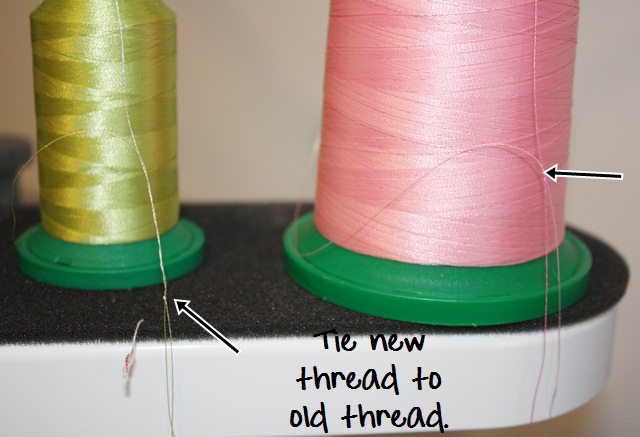
 Now you just un-thread those needles (the ones you are changing thread colors on) and pull the old thread (from way down by the needle). Pulling the old thread will also pull and guide the new thread through all of the holes, around the tension knobs and guides, etc. since they are tied together.
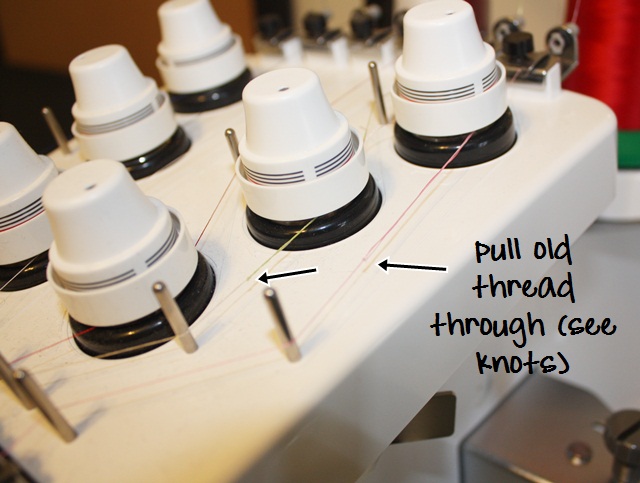
The teeny knot will pull that new thread all the way through down to the needle (but not through the needle hole).
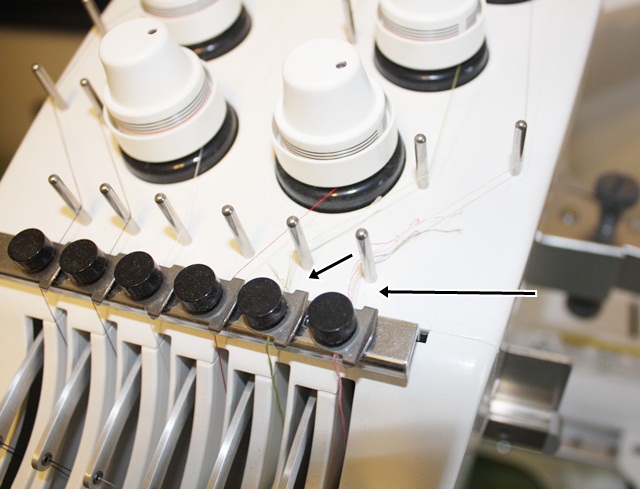
Don’t try to pull it through the needle hole. The knot, however tiny, is too big to go through that hole. Again, I UN-THREAD the needle before I start pulling.

This is when you press that NEEDLE SELECT button in the lower right corner of your screen.
 It will pull up this screen, which shows you your needles. The numbers are backwards because needle 1 is actually the far right thread on the top of your machine and the far right needle on your needle bar. If you are changing out the thread colors on needle 2 and 3 only, then just select 2 and your machine will move needle 2 to the center of the machine.

 This photo is blurry, but there is a guide (see next photo) that you wrap the thread around, and then you wrap the thread up and to the right around the white button with the curved arrow on it (below). This will also cut the excess thread off (including the previous color thread hanging down). You then press the THREAD NEEDLE BUTTON (see ABOVE photo) and it will thread your needle. Then you would select needle 3 and your machine will move needle 3 over making it the center needle. Same process ~ wrap the thread around the guide, then up and around the white button which will cut the excess thread off. Then press the thread needle button again.

You may see better the metal guide/clip to the left of the needle. You wrap the thread around it to the left, then up and around the white button.
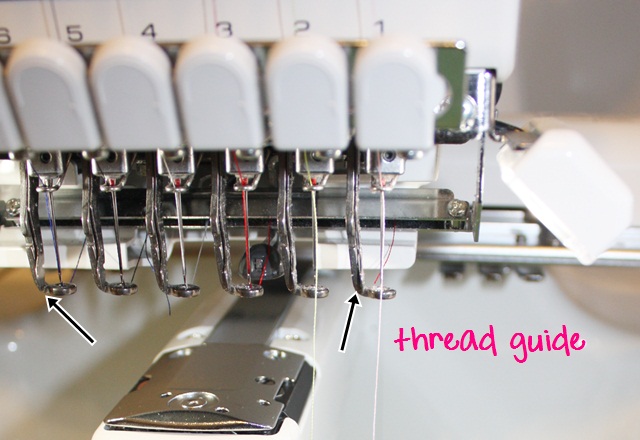
 The automatic needle threader sweeps down, threads the needle and pulls the excess thread to the silver bar behind the needles.

 Here is another shot of 2 thread colors tied together. Red was the old thread and I’m changing it to yellow.

 I think I mentioned before that I typically KEEP black & white thread on my machine at all times. Since I’m right handed, I also use needles 1,2 and 3 the most. I don’t think I’ve ever done a design in which I needed more than 6 thread colors. If you needed to, you could change out the thread during the sewing process.

I don’t want to get too technical. This is just a quick shortcut in case any of you are thinking of getting this machine! I know when I first looked at it I was thinking it was going to take me all day just to change thread colors!

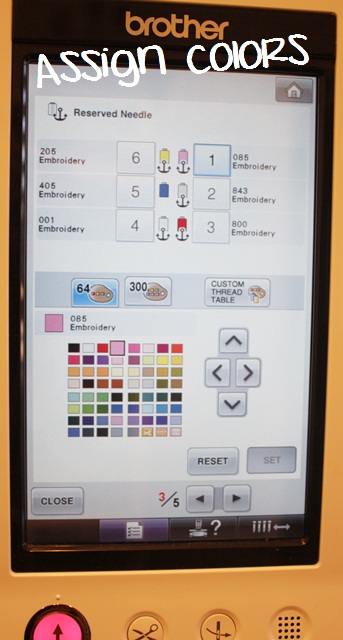
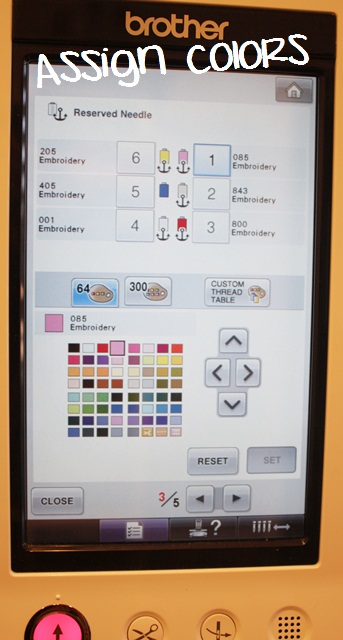
This also goes back to my other post regarding assigning thread colors to my machine. When I change my thread colors, I then “tell” my machine what colors are now on the machine. I had a couple of people comment that they do this differently, but this is how I was taught and seems the most logical to me, so I’m going to stick with it (because it’s also like 2nd nature to me now). There seem to be other shortcuts (magic wand) but this method makes the most sense. There is a video on Sewingmachine.com on assigning colors: http://www.youtube.com/watch?v=zElZLt2l3fU&feature=player_embedded. I believe it’s a PR620 so it’s not exactly like my machine and my screens. But, one blog reader said it helped.
I will work on the PR650 applique post this weekend!
Brother PR-650

I posted on Facebook a week or two ago asking for blog topic suggestions. Someone mentioned my PR-650 (or 6 needle “professional”) machine ~ an intro of sorts for any of you saving your pennies! I personally started with a Brother PE700 single needle machine, taught myself, and used it (and a 2nd machine ~ PE770D) for a good 3 years. I always said “I don’t want a big machine“. I certainly didn’t want one until I had my ‘dream’ sewing room. At the time I was in my dining room right in the middle of our foyer and den. Long story short I broke down and got a used PR600, and then soon after upgraded to a new PR-650 (August 2010). Yes, it was in the middle of our dining room until we moved in to our new house this past July where I now have the sewing room that I’m forever trying to decorate…. I haven’t looked back and have loved every minute of using it! Now they have the PR1000 coveted 10 needle, but honestly I’ve never needed over 6 needles on a single applique. Not that a brand new 10 needle wouldn’t be nice, but I’m perfectly content with my PR650.

This is a very brief overview, as I only took pictures today while monogramming a simple hand towel for Sissy’s bathroom. I will try to work on an APPLIQUE post using the 6 needle soon. I recommend seeing a dealer or your local sewing/embroidery store ~ I got a demo and a short lesson before I bought mine. And, I’m posting about the Brother machine because that’s what I have! I’ve owned 4 Brother machines so that is all I know. Babylock is similar (BMP) and I’m sure there are other brands/machines out there!

First of all, you obviously have 6 needles on this machine = 6 spools of thread capability, so when you put your spools of thread on your machine, you  need to assign the colors of each thread to the respective needles. The anchor (see below) means that color is “set” on the needle. The machine will not allow you to anchor all needles ~ one is always left “free” and will be your default needle if you  happen to program in the wrong color, or if you don’t program in your colors at all. It will default to that needle. I usually keep white and black on my machine and one of those is that non-anchored default needle. A little confusing I know! I just chose the closest color from the 64 choices (color chart) below. You just have to remember which color you programmed, because when you load your design you’ll have to assign the right colors. I don’t know that all people assign colors each time they change out their thread, but I do (for each and every design). This tells my machine that light pink is on needle 1, taupe is on needle 2, red is on needle 3, etc. This might make a little more sense down below. (p.s. later you’ll see black thread is actually on my needle 5, but since that needle is not anchored it doesn’t really matter that it says blue.)

p.s. These screens are all touch screens, so you simply press the buttons on the screen and press the colors you want (the squares are really tiny too so it can be tricky). My used PR500 was NOT totally touch screen so you had to use the arrows to move around to the different colors, then SET.

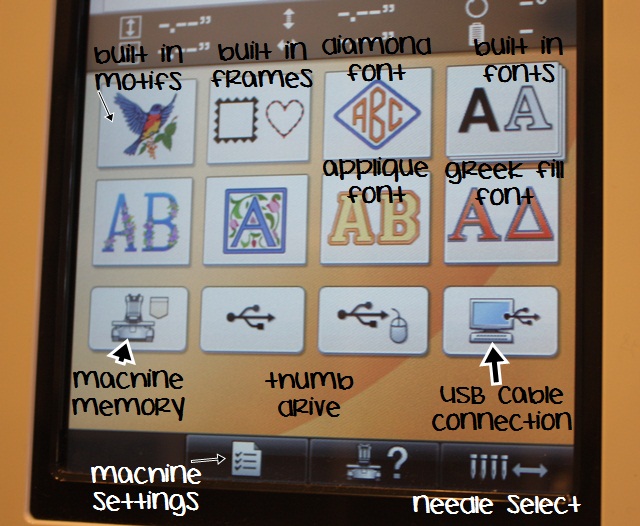
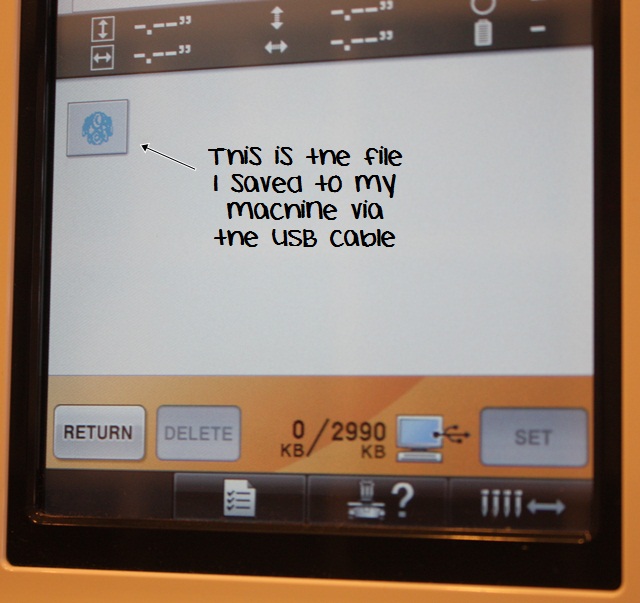
Here is the HOME MENU below. I don’t use the machine fonts or motifs that often (the diamond font on occasion), so I basically use the lower right button which brings up any designs I’ve saved to my machine via my USB cable cord, which connects my computer to my machine. When I have a design on my computer (in Sew What Pro or Monogram Wizard Plus) I save to the E: drive which is my machine. It puts it “inside” that folder (the lower right folder). I only save designs ON my machine (machine memory button) if I’ve loaded a design but want to wait until the next day to sew it. In that case I might save it to my machine memory and would then press that lower left button to retrieve it. You can also use a thumb drive but I use the USB cable cord connection.

Bottom of the picture – you can see the button you press for all machine settings – looks like a check sheet (this is where I assign colors to my needles). Other settings (and there are 5 “pages” of settings): chose background color of your screen (mine is white), screen saver time, lights – off/on, etc. (like I said, 5 pages of settings) This is also where you can see what your machine time is ~ hours of sewing time on your machine, total stitch count, etc. 99% of the time I ONLY click this button, go to page 3, assign my colors to my needles and that is IT.

Bottom right – needle selector. Press this and it will show you needles 1-6. You can move back & forth to whichever needle you need to (to thread each needle, etc). This is used when threading needles when you change thread colors.

So I’ve pushed the button to retrieve my file saved to the machine via my USB cord, and I’ll select the monogram file (Mallory’s initials) and press SET.

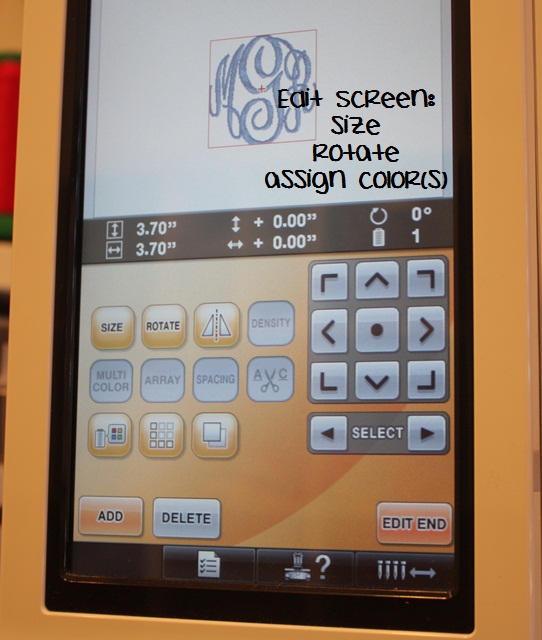
 The file (monogram) is ready to edit. I can adjust the SIZE (most machines will adjust 10-20% smaller or larger), ROTATE (90 degrees, 10 degrees, etc), MIRROR IMAGE (flip flop the design) and most importantly – COLOR! You also may notice ADD, DELETE ~ you can add in a design, etc. Since I do all of my “work” on my computer (Monogram Wizard Plus or Sew What Pro), I do not use this feature. The arrows on the right are used to move the design around, and I guess you’d use this if you merged in something else. I don’t use the arrows at this point.

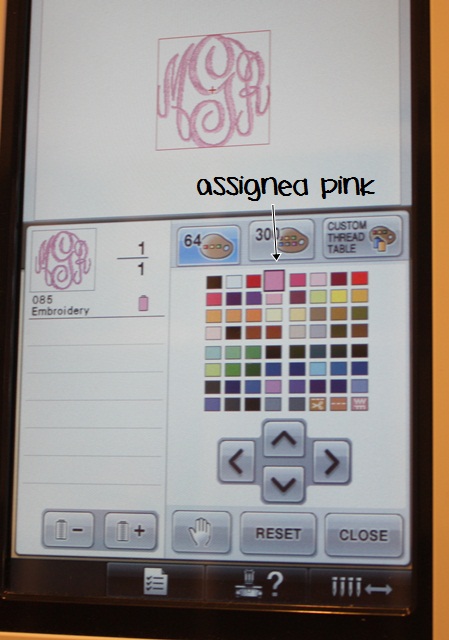
 I’ve selected the COLOR button (looks like a spool of thread w/ the 4 color squares). Since this is a monogram it’s 1 color/1 step. If it were an applique, there would be a list of steps and colors to assign. I select pink – the SAME pink I assigned to my needle #1. Remember, if you select a different shade of pink, the machine will default to that unanchored needle, which is probably black or white on my machine. The good news is, your machine will warn you before you start that a color is assigned that is not assigned to a needle IF YOU PAY ATTENTION!! I have left the room and sewn the wrong color before! Again, if I were doing an applique, I would assign step 1, then press the “+” to go to the next step and assign the next color and so on and so forth. When you’re done press CLOSE.

** You might also notice the HAND button. This is used when doing applique ~ if you want your machine to stop before a step, then you press the HAND! I would program stops in between the steps so I’m able to lay my fabric down, trim my fabric, etc. If you don’t program any steps, the machine will NOT stop!

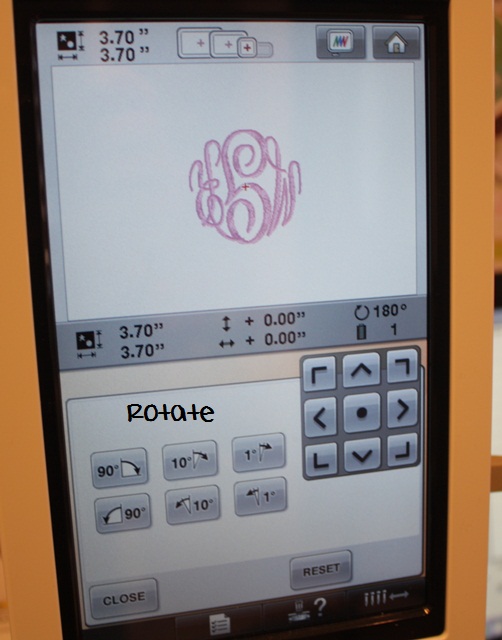
I hooped my towel and wanted to monogram upside down so the towel excess hangs to the front of the machine, so I rotated the design 90 degrees. (When the hooped towel is placed on my machine, it’s upside down, so I want to monogram it upside down.)

 When you are ready to sew you’ll see this screen. After all the editing you’ll press EDIT END. You can then move the needle around to line up with the center of your garment. You will also see below your needle is assigned to pink, needle 1. If this were an applique you would see a list of colors and steps! You can also see to the right my computer screen with the monogram on it in Monogram Wizard Plus. P.S. This is Master Circle MWP alpha pak 14 font – LOVE it!

I’m ready to sew, so I would then press the LOCK button to unlock the needles, then START on my machine!

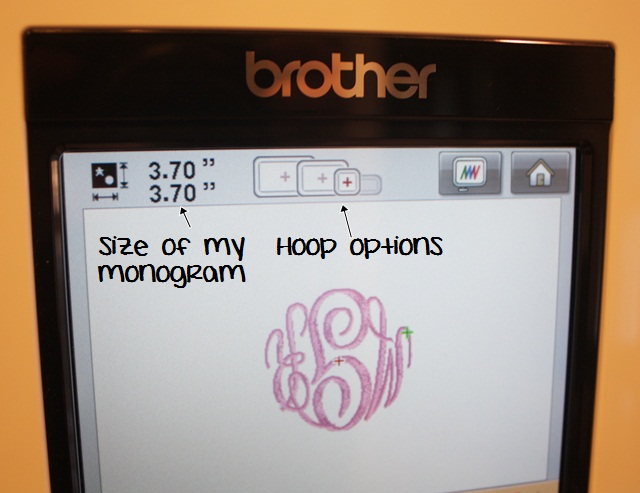
Top of screen ~ the size of this monogram is 3.70″ x 3.70″ and you can see it shows you which hoops you can use. I’m using the 4×4, but you could use any of the bigger hoops too. The hoop looking button shows you what your design looks like IN THE HOOP ~ there is actually an image of the hoop and your design in it on the screen. The HOUSE is the HOME button!

 Here’s a shot of the thread ~ they are intricately run through all of the guides and tension knobs. When you change thread, an easy shortcut is to tear or cut the old thread off right at the spool, put the new spool on, tie the old & new thread (ends) together in a knot and then pull the thread through the guides/knobs and then rethread the needle. Pulling the old thread will pull the new thread through since they are tied together. Huge time saver! I’ll try to take a picture of that next time too.

Tension ~ there is an excellent video at www.sewingmachine.com on how to do a tension test, which is a feature of the machine. Once your tensions are right, there is no need to adjust them. I rarely ever fool with the tension knobs! The only maintenance I do on this part of the machine is the occasional cleaning and dusting ~ wax from the thread sometimes builds up on the guides (alcohol and a Qtip will clean them off – the guides are the silver sticks you see) and also dust can build up or get under the clips.

Any piece of lint can cause the machine to not work properly!! Your machine might stitch a few stitches and then STOP and tell you to check your upper thread and bobbin thread. It’s important to keep the machine clean and dusted.

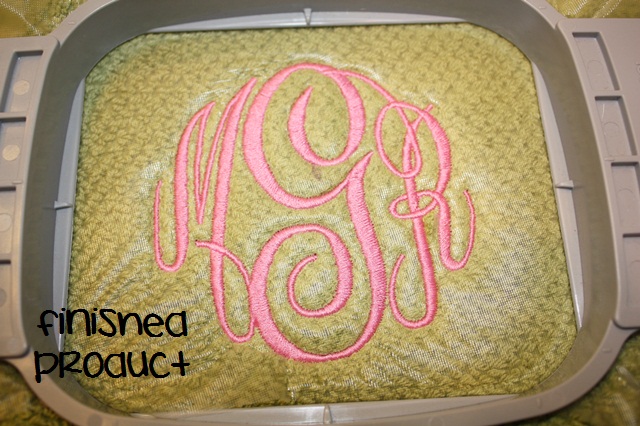
Now… I’ve sewn my towel and this is the finished product! I used iron on tearaway stabilizer on the back and solvy on top!

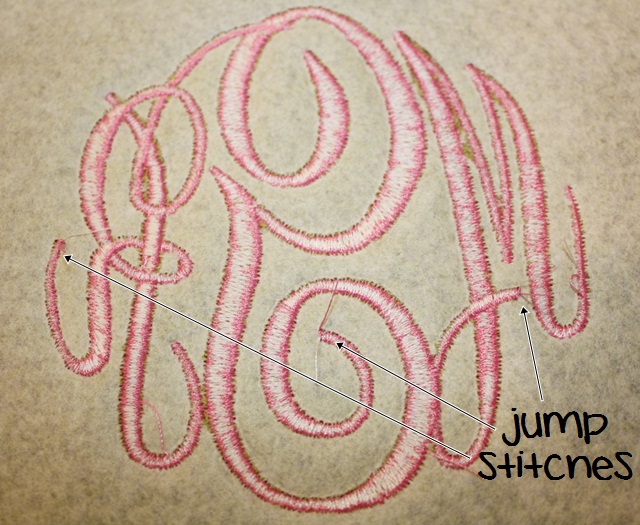
My FAVORITE thing about this machine is that it clips jump stitches UNDERNEATH the item! A major time saver!!

 This was a very basic overview of the machine! I’ll try to do an applique post on the 6 needle soon! There are other features of the machine that I simply don’t use or I forgot to cover. It’s a little different doing an applique too (mainly programming in ALL of the thread colors and programming in the stops so the machine will stop). I will work on that post soon! If you have any other questions, please comment and I’ll address them next time!

This all may seem confusing or complicated, but I promise it is super easy and once you get the hang of it you will wiz through all of the steps in lightening speed! I can now set it up for an applique with my eyes closed!

My “PROS” of this machine:

  • Of course, being able to use 6 needles and 6 thread colors at once! I remember changing thread on my single needle machine for every color of an applique. I could do it in my sleep, but having the option of 6 colors is great!
  • Clipping the jump stitches underneath! Huge time saver ~ sometimes small embroidery jobs (small names, etc) jump from one letter to the next w/out clipping, but for the most part you can do a monogram or a name or applique and not have to clip a single jump stitch!
  • Very low maintenance ~ other than keeping it dusted and clean, there is very little maintenance! If your tension is off, you simple adjust the knobs. If your tension is off on a single needle machine, it usually means a trip to the shop! On these machines you can usually make all adjustments yourself. It’s recommended you get your machine serviced every so many hours of sewing time.

Please email me with any questions or comments! BTW, this machine came from Sewingmachine.com! AND… if you know any short cuts that I am not aware of, please share! This is how I learned the machine so this is how I do things!

Fabric Storage

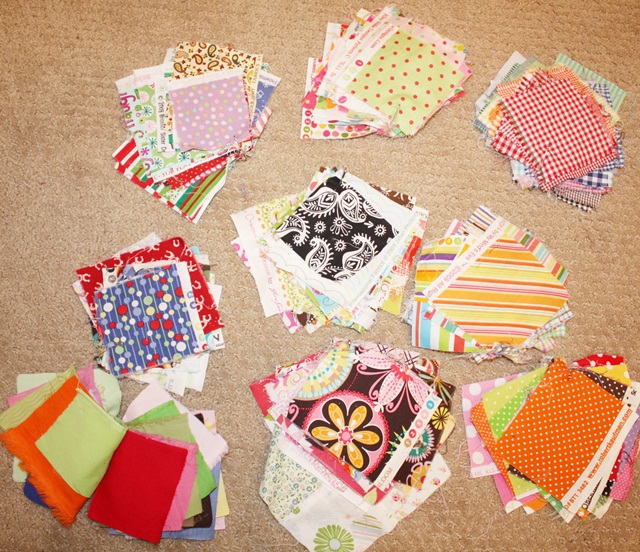
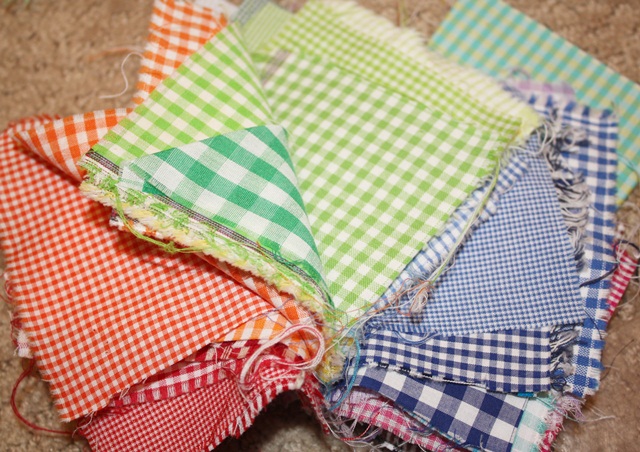
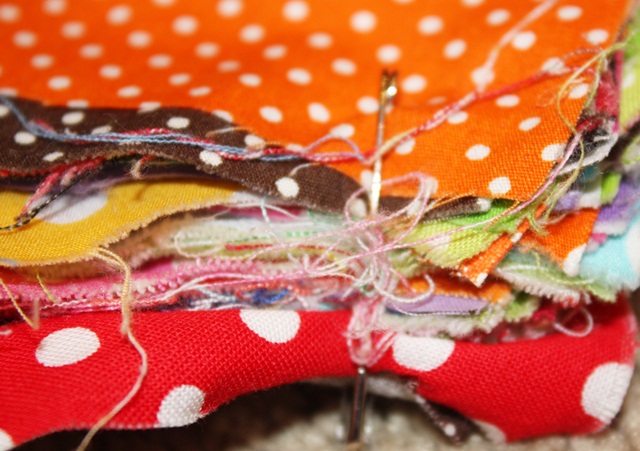
Yesterday on Facebook I asked for some blog post suggestions for the new year. I got quite a list (which I printed – 6 pages worth) and am working through them as we begin 2012! Several people asked about FABRIC STORAGE. This is not my area of expertise, as you will see down below. But, I can tell you how I do things and then make 1 suggestion that I’ve seen and like (but am too lazy to do). First of all, I USED to cut a fabric swatch of my fabric (4-5″ square) and organize it by style or theme and safety pin each style together. I did this when I was doing a lot of customer work and had people in and out of my house picking out fabrics for appliques. This was a great way to show my fabrics and for my customers to be able to pick out what they wanted without them having to sort through drawers of fabric. Somewhere along the way I stopped doing this :(, so this is only a fraction of my fabric selection. As you can see, they are “organized” by colorful polka dots, ginghams (all sizes), boy stuff, stripes, color w/ white polka dots, seasonal, etc etc etc….

 Someone also asked about how to pick out fabric for an applique design. I would say my “go-to” fabrics are always polka dots and ginghams. They just “work” with any design you are doing! I use A LOT of polka dots, ginghams and solids. I look at a design, usually start by picking 1 fabric I know I want to use, and then try to coordinate with that. Sometimes I can pick out fabrics very quickly, and sometimes it might take me an hour! This is another post in and of itself!!

As you can see I had arranged these ginghams according to the colors of a rainbow! 😉

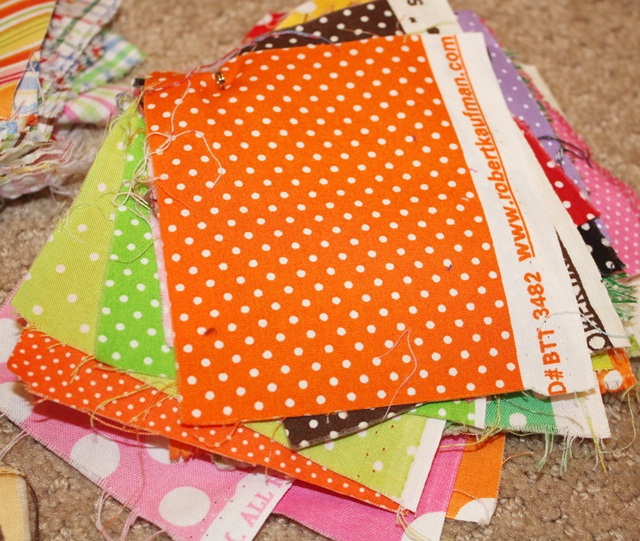
 I just pin the swatches together in the corner with a big safety pin. Nothing fancy! I guess I should mention that when I used to cut swatches of my fabric, I would try to cut a swatch out of whatever edge might have the name and designer of the fabric. Sometimes the piece you get (if you get 1/4 yard) doesn’t have that info, but if it does, it’s helpful to cut that piece!

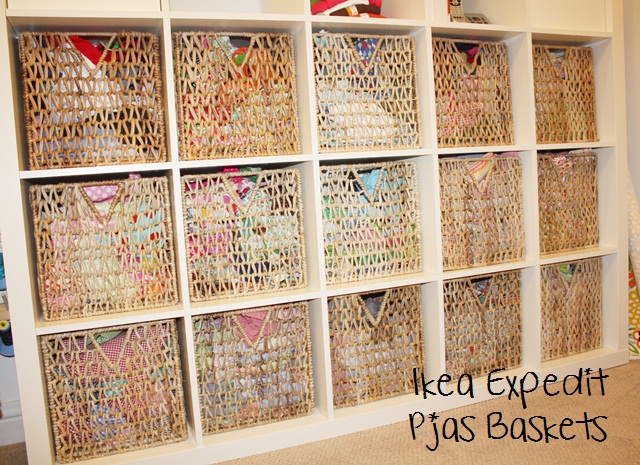
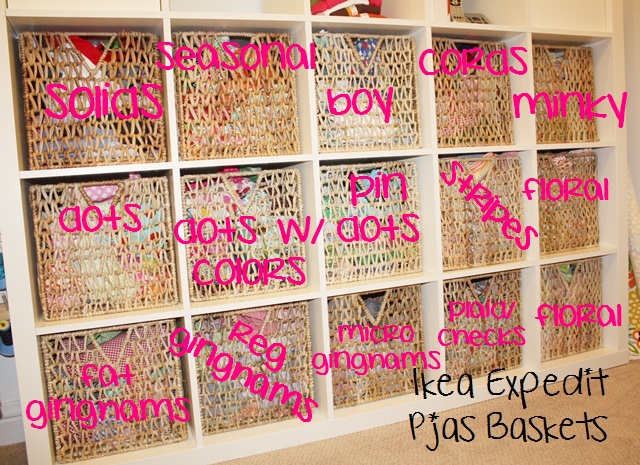
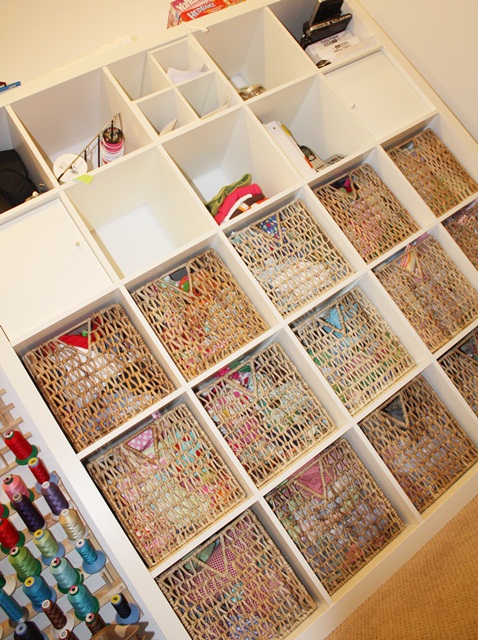
 Now… this is MY fabric storage and it works for me, but I would not call it neat! Several of you said yours was in boxes and you had no idea what you had. I concur!! Sometimes I dump a basket out and go through it if I can’t decide on fabrics for a design. My fabrics ARE organized by style, so I do know what is in each basket (…sort of). Yes, I have 15 baskets full of fabric. I have a problem.

 This is how they are organized ~ solids, seasonal, boy fabrics, corduroys, minky dots, polka dots (regular to big dots), colorful dots, pin dots, stripes, florals, fat check ginghams, regular ginghams, microcheck ginghams, plaids/checked fabrics and more florals.

 My Expedit from Ikea is the 25 cubby Expedit. LOVE me some Expedit!! We had friends who were in Atlanta this past weekend and they were going to Ikea, so they brought me 4 more of the Pjas baskets. I am so thankful!! I’m hoping to go back in a couple of weeks!!

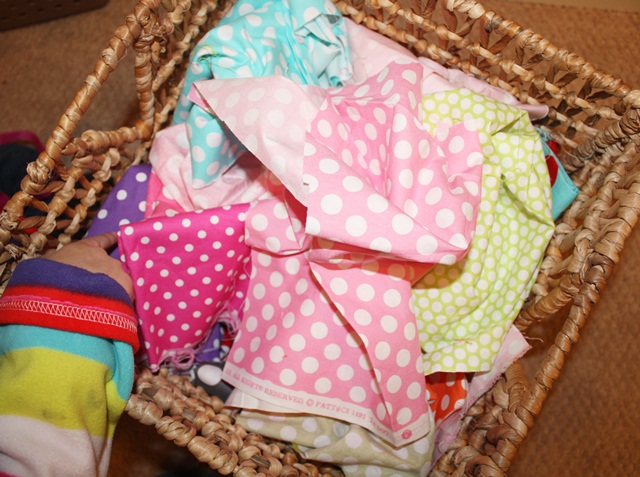
Here’s a look inside my baskets. They are just thrown in there! This is my go-to polka dot basket. All of my Michael Miller Ta Dots are in here. MOST of these have white dots too, although I see a teal fabric in there with big red dots!! That is Sissy’s hand pointing to the purple.

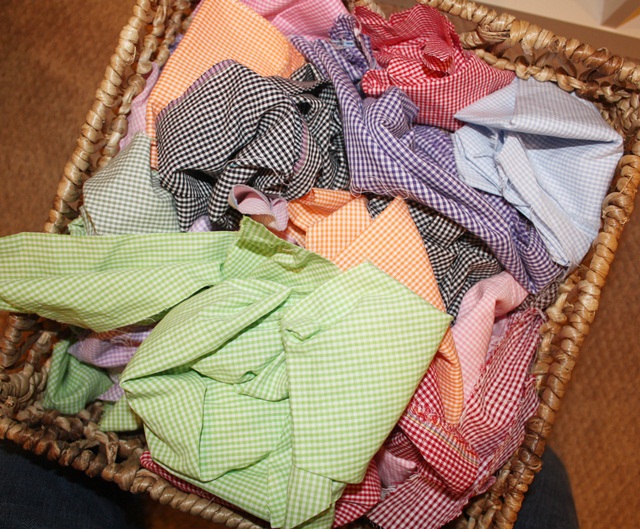
 Here is my basket of ginghams. They are all basically the same size regular ole 1/16th ginghams. My fat chunkier ginghams are all in a basket as well as my microcheck ginghams which are in another basket.

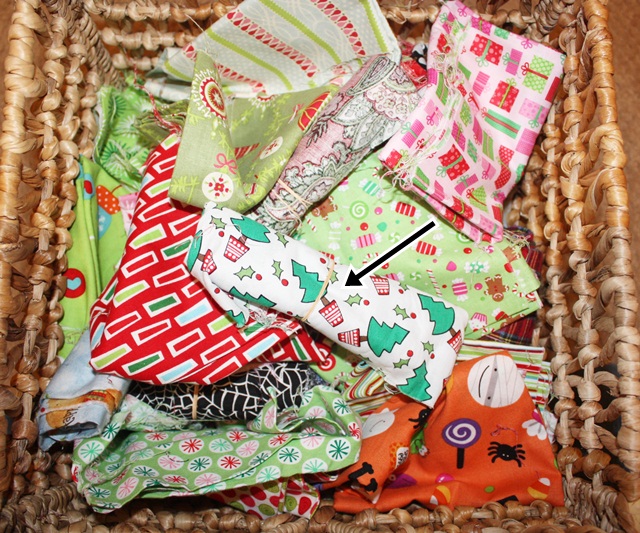
 Here is my seasonal basket ~ mostly Christmas, some Halloween and Valentine fabrics are in here. Notice the arrow pointed to the neatly rolled up fabric secured by a rubber band. That USED to be my practice (probably when I also cut swatches of every fabric). I still have some that are rolled and rubber-banded, but most are just thrown in the basket. Some are at least folded!

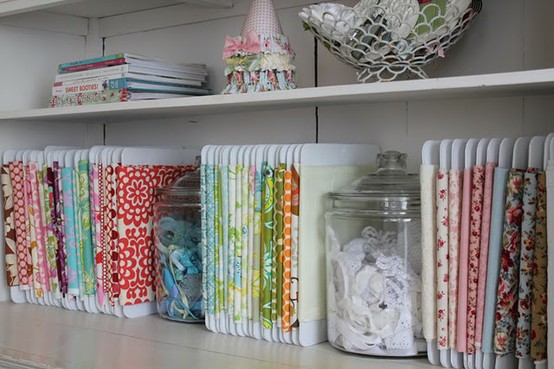
Now, I drool over this……

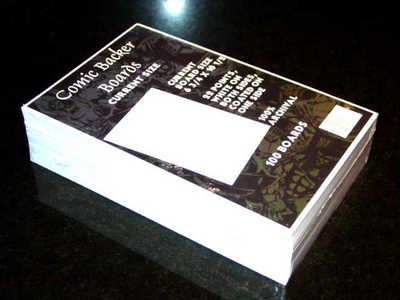
The above photo came from Pinterest ~ fabric NEATLY placed on boards and displayed beautifully on a shelf. I think most people who showcase their fabric this way use Comic Boards (see below) which usually come in packs of 100. Try Amazon or just Google “comic board”. I would love to display my fabric like this! But, I am too lazy and my system works for me and it would take me 6 months to iron and wrap all of my fabric like this! Maybe I should just take my favorites and try it??

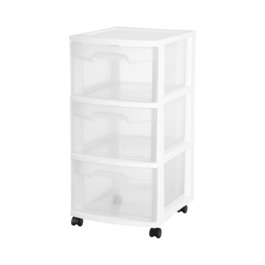
 I hope this helps! I’m sure there are 1,000 ways to organize fabric! I find the best way is to organize it by style. The swatches are great too if you have customers coming in to your home. Before my Expedit I used the plastic drawer bins from Target or Walmart (see below). I think I was up to 6 of them before the cubbies.

Thanks to those of you who suggested FABRIC STORAGE as a blog post! I will be contacting you via Facebook for a surprise!