Here is my followup post on APPLIQUE on the Brother PR650. This is a simple (new) Bunny Applique Cafe design I sampled this past week. I get asked a lot by newbies if I include instructions on my applique designs. The answer is THREAD CHART! We include a thread chart which includes an image of each step. I ignore the thread colors because I am going to pick out whatever thread colors I want to use based on the fabric I pick out. You would typically use the same color thread for marking, tackdown & satin, but in digitizing, these colors MUST be programmed (digitized) differently. This tells your machine to STOP!
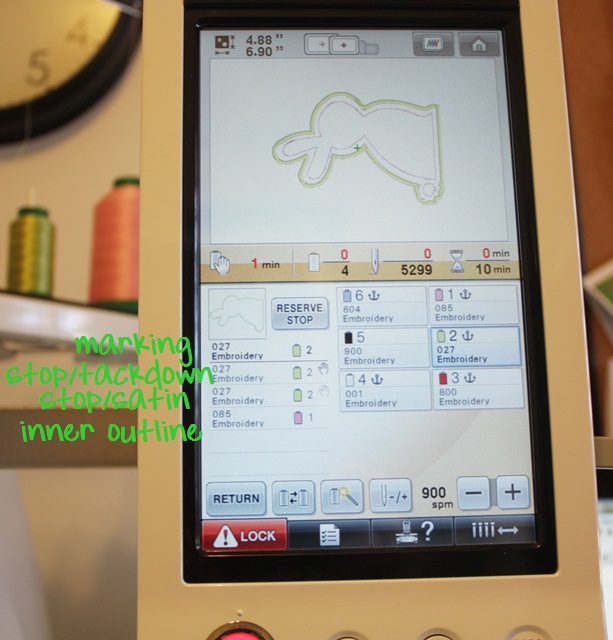
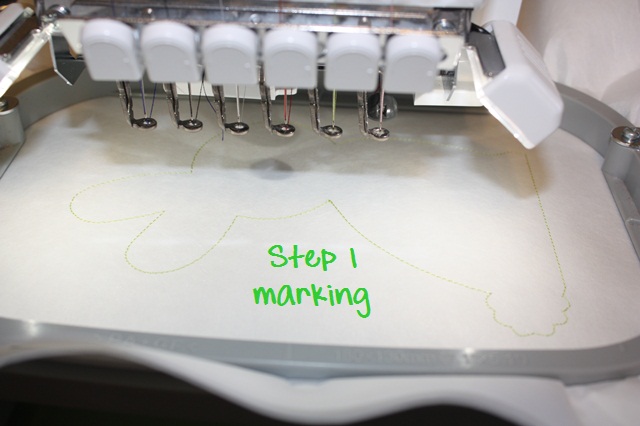
You see below 1. Marking, 2. Tackdown, 3. Satin and 4. Inner stitching on the bunny (which could be left off). This 3+ step process applies to all applique designs ~ 3 steps per fabric (marking, tackdown and satin). Then factor in eyes, nose, inner stitching like this, etc. 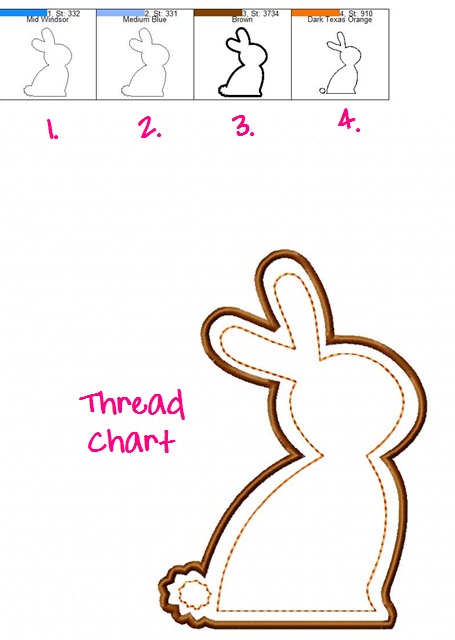
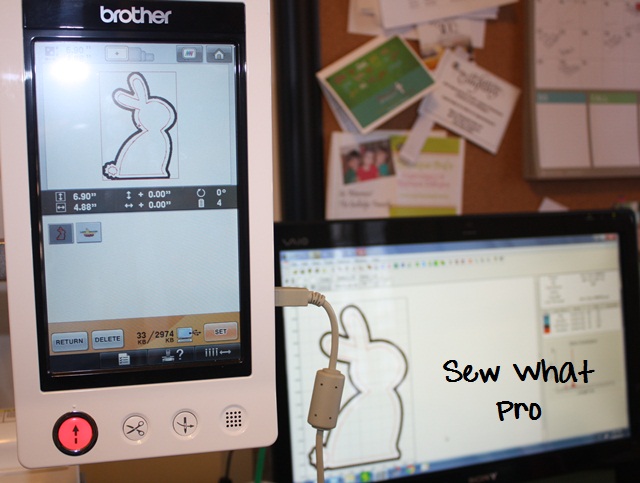
Here I have saved my Bunny design on to my machine via the USB Cable connected to my computer (E:/ drive on my computer). As you can see, I use Sew What Pro on every single thing I sew! Even if I’m NOT editing or merging, I LIKE to see what I’m doing on my computer screen, so I always pull my designs up using SWP before I save to my machine. Note that the bunny is upright ~ later I will rotate it to the left so it will fit in my 5×7 hoop.
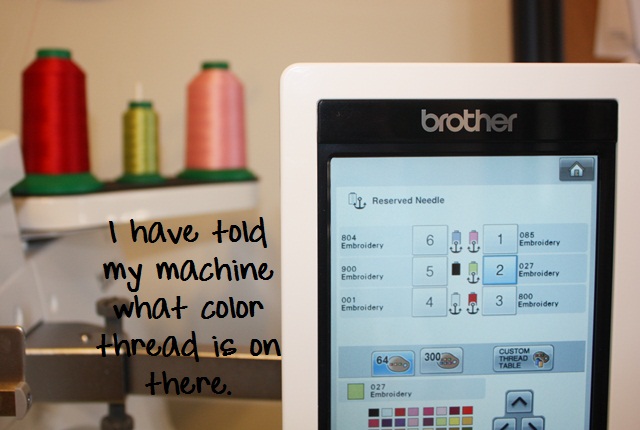
I have chosen a green/white dot fabric for my bunny and I want to use a pink inner stitching on him, so I have put my colors on needle 1 (pink) and 2 (celery green). I have “told” my machine that I put pink and light green on it, as you can see I anchored these colors below on needles 1 and 2. This is how I was taught, so this is how I assign colors on my machine. Now my machine knows that light pink is on needle 1, lt green is on needle 2, red is on needle 3, etc. Needle 5 is black and is not anchored ~ the machine will only allow you to anchor 5 colors and the non-anchored needle is a free agent.
Now we go through the steps to tell my machine which colors to use when sewing each step. Step 1, I assign the same light green color that I told my machine was on needle 2. Step 1 will be my marking stitch, which will be an outline of where my fabric should go (the shape of the bunny). I then press the “+” button to move on to step 2.
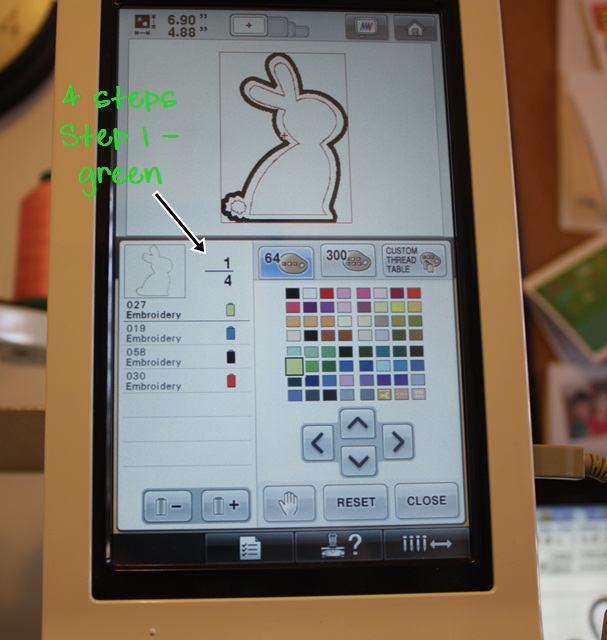
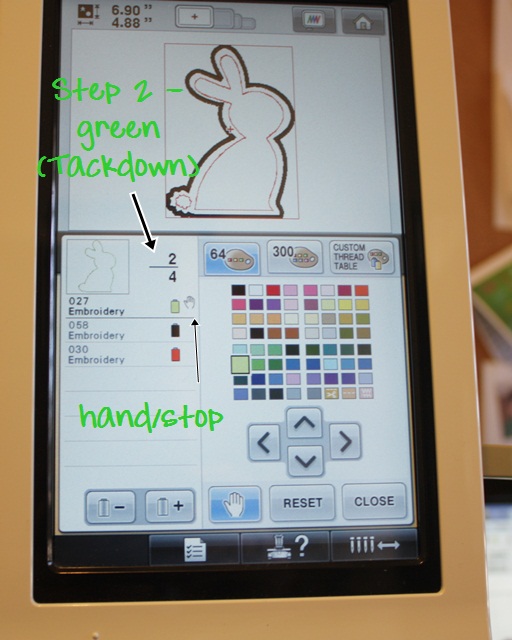
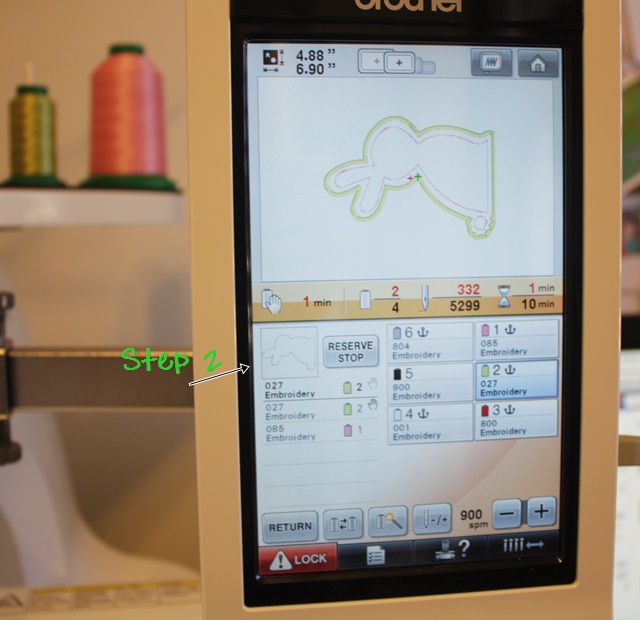
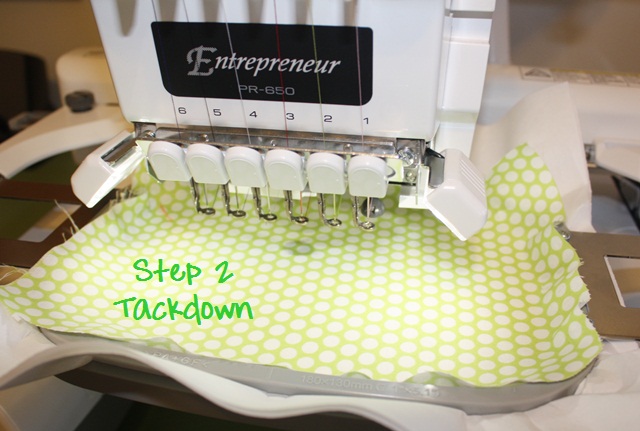
Step 2 is tackdown and I want it the same light green as Step 1 and needle 2. Since I am laying fabric down before the tackdown stitch, I press the HAND, which tells my machine to STOP before step 2. This will give me time to lay down my fabric. I will then press the “+” again to move on to step 3.
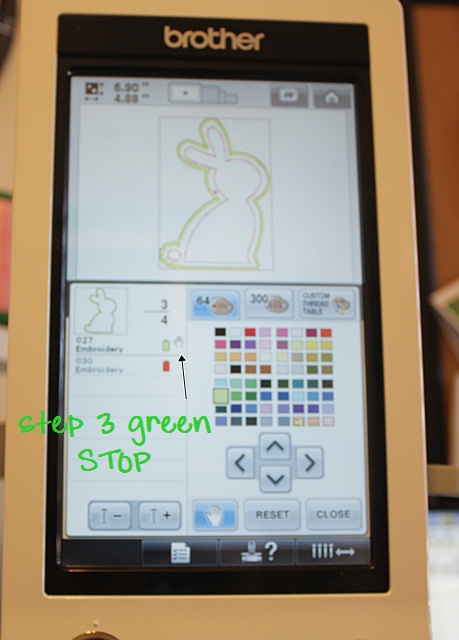
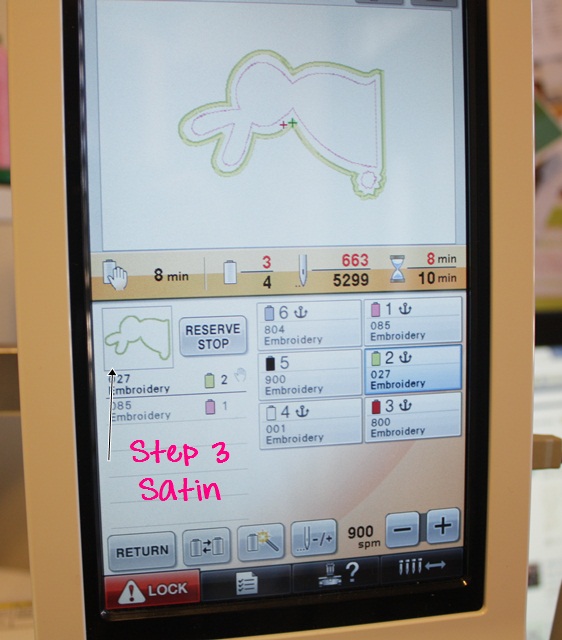
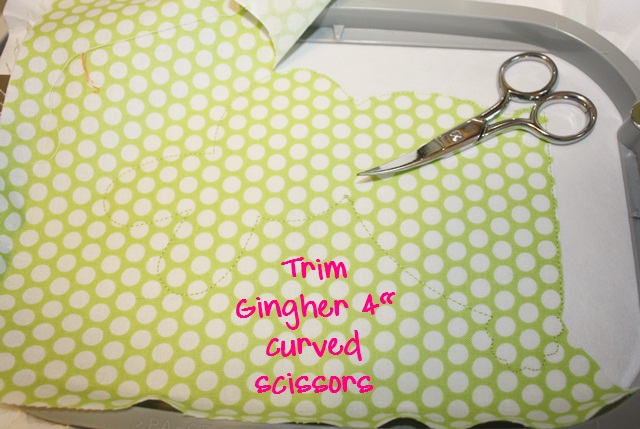
Step 3 is our satin stitch, which is the finishing stitch around the design. I want it the same light green and since I’ll need to TRIM my fabric before the satin stitch, I press the HAND again which will tell my machine to stop before Step 3. I press the “+” button again to move on to step 4 (our last step).
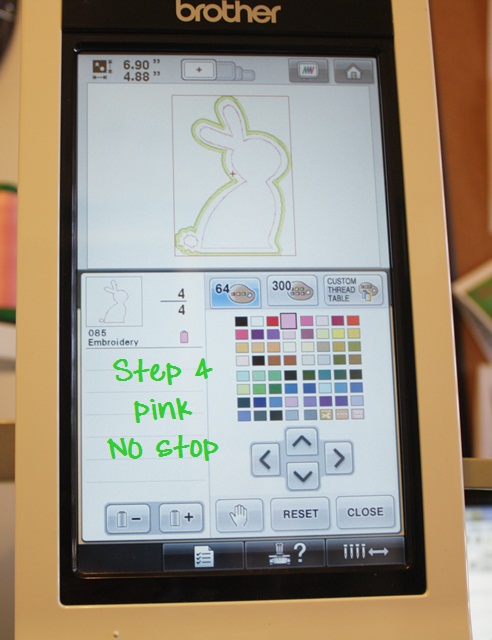
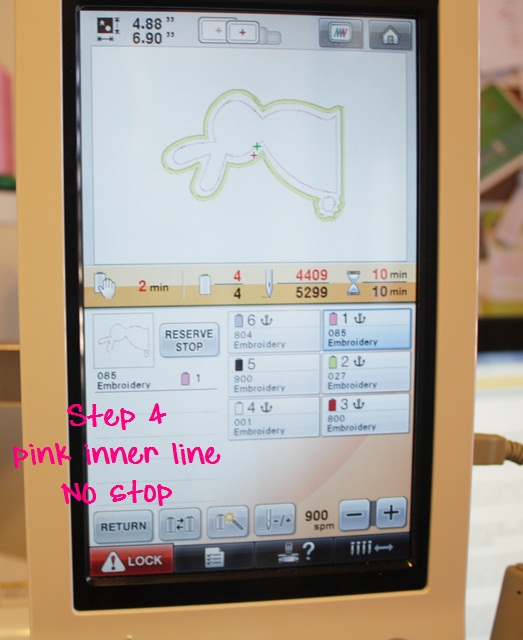
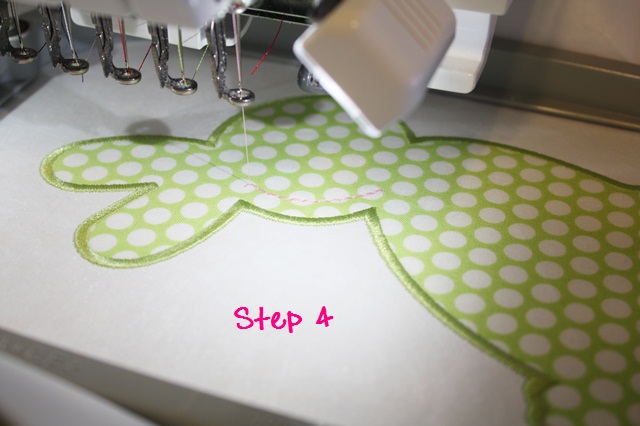
Step 4 is the inner stitching on this design, and I chose light pink which I assigned to needle 1. Since there is no need to stop before this step, I do not press the hand, and my machine WILL NOT STOP after the satin stitch. It will change to needle 1 and stitch the pink inner stitching. *During this 4 step applique design, the machine will stop FIRST to let me place my fabric down and a SECOND TIME to let me trim my fabric.
As you can see, the bunny is still upright and it’s showing it will only fit in my biggest hoop. Now that I’m done assigning colors, I can rotate it to fit my 5×7 hoop.
Press CLOSE after assigning colors! PS. This machine has a touch screen, so you simply press each color with your fingertip to assign the colors. I had a PR600 that was NOT touch screen, so you had to arrow up and down, left and right to get to the chosen color.
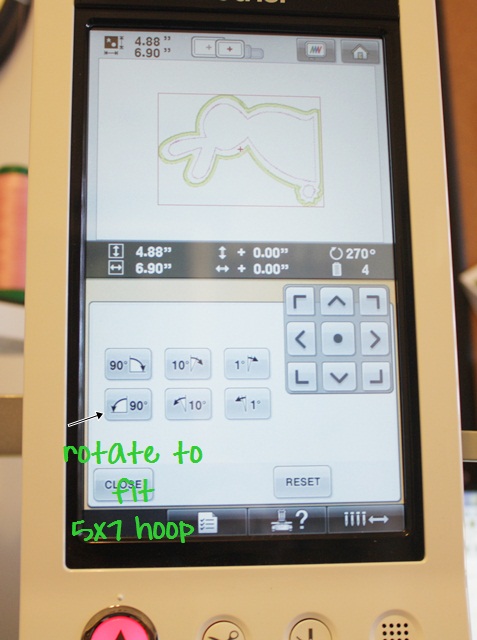
Now I rotate the design 90 degrees to the left so it will fit in my 5×7 hoop. As you can see, the design is 4.88″ X 6.90″. Press CLOSE when you are done rotating.
You are now ready to SEW, so press the SEWING button (not shown). It will pull up this SEWING SCREEN. As you can see, this design is 5,299 stitches and should take 10 minutes of sewing time (does not include preparing fabric or trimming). My machine is set to 900 SPM (stitches per minute). The max is 1000. You can also see which colors are assigned to my machine (right side) and each step and the needle my machine will use to sew it (the list on the left). If I have accidentally chosen the wrong shade of green or pink, there will be a line on that step telling me I’ve chosen a color that is not anchored on my machine. It will default to the free needle (black) which is not anchored if I don’t correct it. If I’m paying attention, I will go in and fix this and select the correct color! I think the machine also beeps and says something as a warning.
Step 1 – needle 2 (green), STOP Step 2 – needle 2 (green), STOP Step 3 – needle 2 (green), Step 4 – needle 1 (pink). It will STOP before step 2 and 3, giving me time to lay my fabric down and also trim before the satin stitch.
Time to SEW! To sew each step, you press the LOCK button to unlock the needles (safety feature) and the button below it (which is red in the above photo) will turn green. You press it to start your machine. In the photo above you can also see other buttons: needle -/+ is your back up, go forward feature if you ever need to back up. You can back up or skip ahead by complete steps or by stitches (1, 10, etc).
As you can see, there is an image of each step on the machine sewing panel.
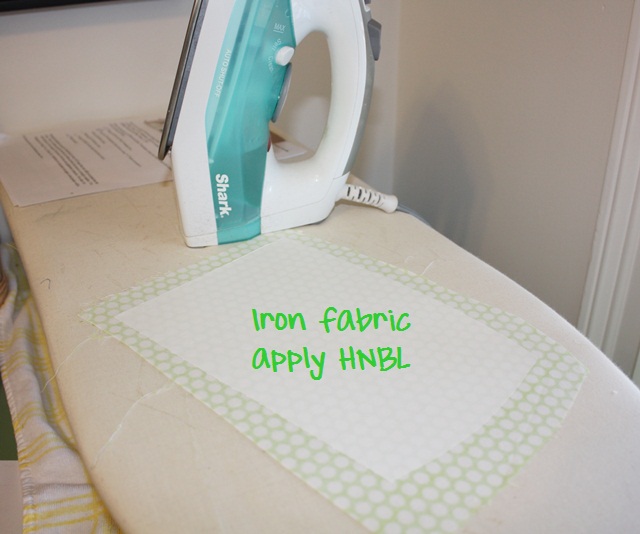
After marking I’m ready for fabric, which has HEAT N BOND LITE on it.
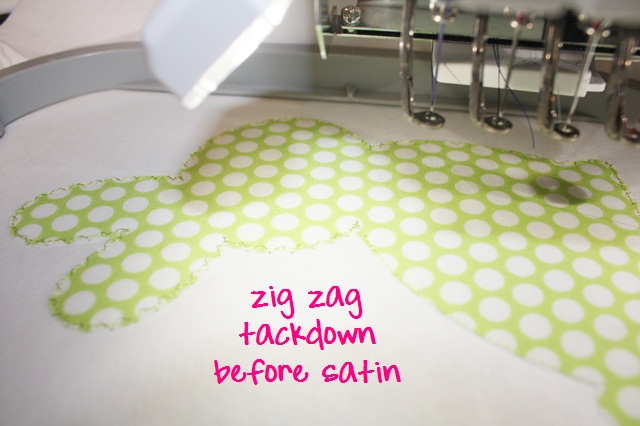
Peel the paper away (of course) and lay down your fabric. The machine has stopped because you told it to (the HAND) before step 2 (tackdown).
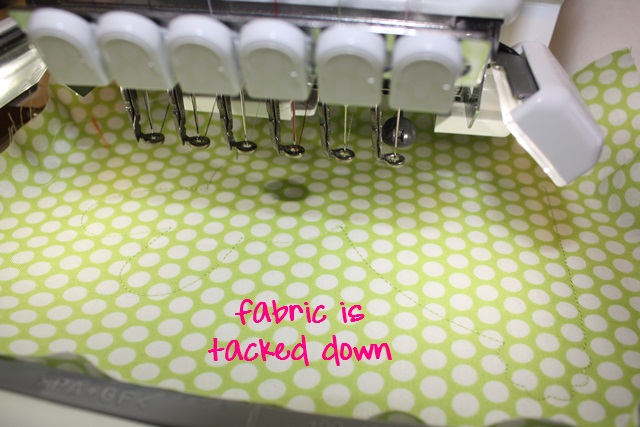
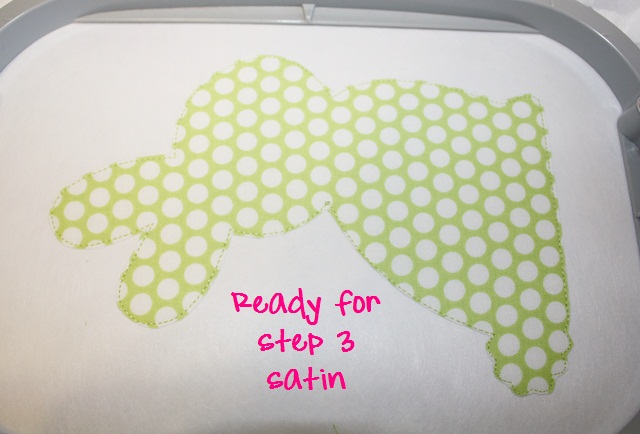
Ready for satin stitch (step 3) so time to TRIM. Your machine has stopped since you programmed the hand = stop before the satin stitch.
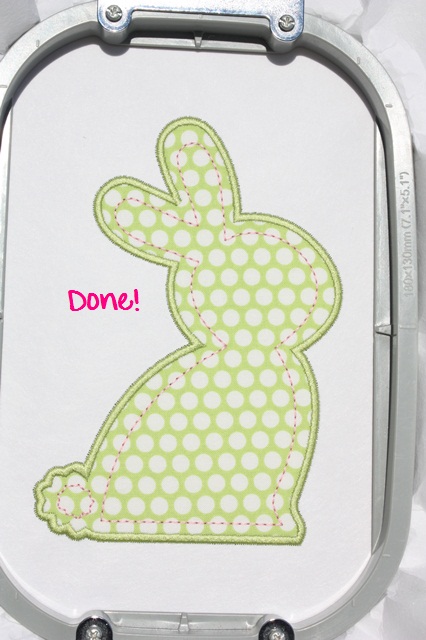
Time for that inner stitching which I’m doing in PINK. My machine will not stop after the satin stitch since I did not program in the HAND/STOP, but will keep going with the pink inner stitching. ***This is a wonderful feature of any multi needle machine! When doing an applique, once all fabric is down, you can program your machine with the thread colors and it doesn’t have to STOP for you to change colors! If this bunny had eyes and a nose, it would keep on sewing, changing needles/colors automatically!
Here is the finished BUNNY!
I hope this helps! It really is EASY and once you get the hang of it you can program all this in a matter of a few minutes. There are other features of the machine, but I don’t want to get too confusing. For example, if you are in the middle of the design and decide you want to use a different color, you can either 1. STOP the machine and change out the thread color on the needle you’ve programmed or 2. use the MAGIC WAND to change needles/colors. I’ll save that for another post!
This is a follow up to these posts: Brother PR650 and Brother PR650II. All of these posts can be found under HELPFUL POSTS on my blog tool bar.


Recent Comments